



If you’re selling on Meesho or planning to start, this guide covers everything you need, from creating your seller account to setting up product pages, managing orders, and even deleting your account if needed.
By the end, you’ll know how to set up your Meesho seller account step by step, optimize your product listings, understand product IDs and style codes, and use the platform like a pro. Meesho charges 0% commission and lets you start with zero investment, so there’s really no barrier to getting started.
Let’s get into it.
How to Create a Meesho Seller Account (Step-by-Step)
Want to start selling on Meesho? Here’s everything you need to set up your seller account from scratch, with requirements, steps, and tips to get it right the first time.
Meesho Seller Account Requirements (GST, Bank, Pickup Address)
Before you start, make sure you have these ready:
- Mobile number + Email ID: You’ll need these for OTP verification and login
- GSTIN: If you’re GST-registered, great! If not, you can still go with the GST Enrollment ID or UIN instead.
- Active bank account: With account number and IFSC, this is where your payments go
- Pickup address: The location from where your orders will be picked up
How to Create a Meesho Supplier Account (supplier.meesho.com)
Here’s how to create your Meesho seller account step by step:
- Visit supplier.meesho.com and click Start Selling.


Enter your mobile number, get a One-Time Password (OTP), and verify it.

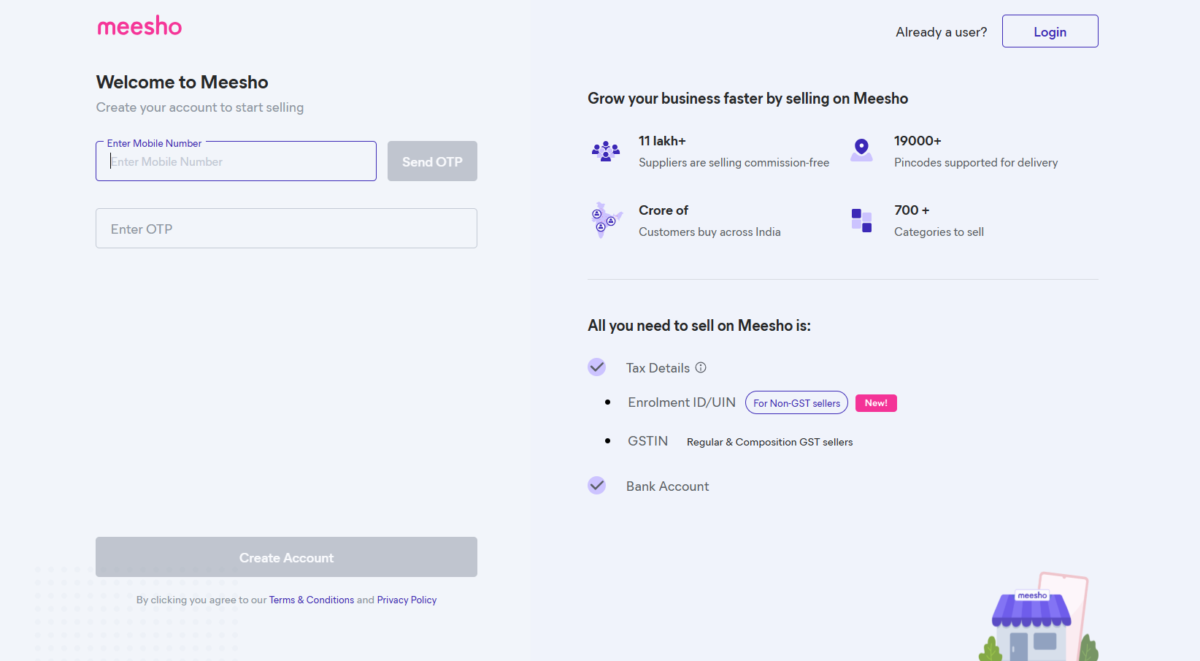
Step 1: Add Business details: If you have a GSTIN number, then fill it up; if not, then select the No button


After proceeding to add details, you will see a pop-up form. Fill in all details and click “Submit Details.”

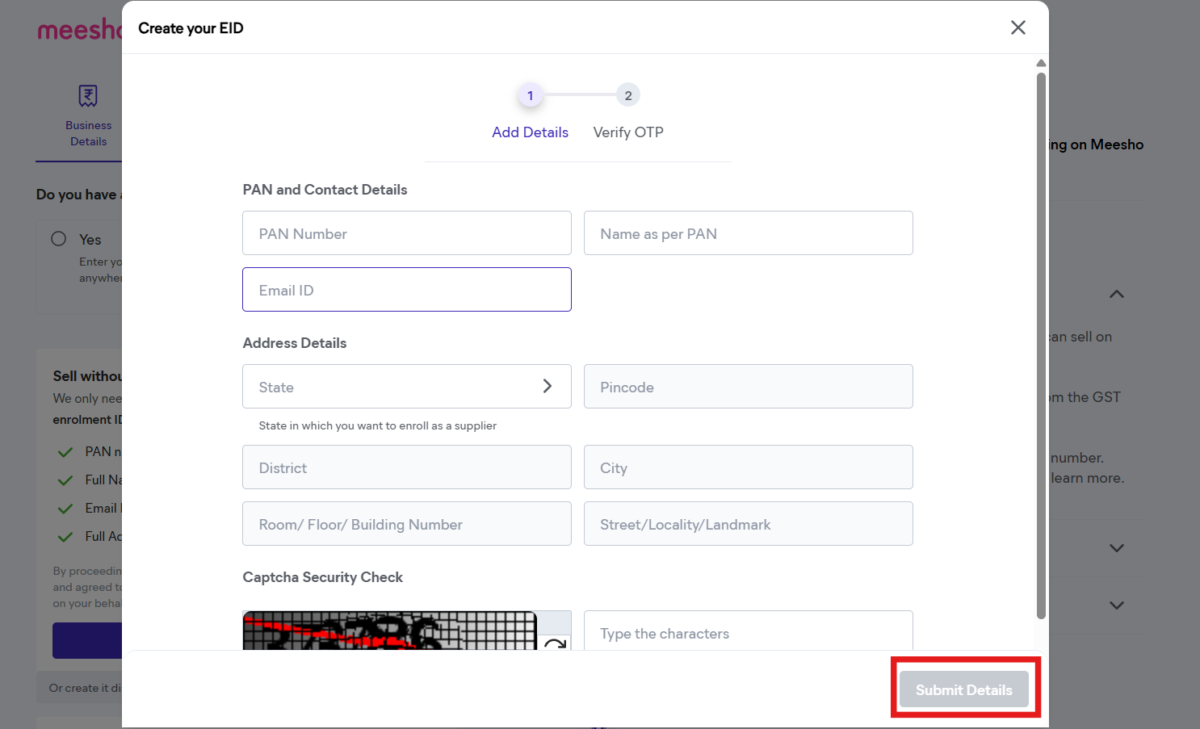
After that, you will get the OTP Popup and get back to the Business Details Screen:


Check all details and click “Continue”. You can confirm that your Enrollment ID/UIN has been sent to your email.
Step 2: Pickup Address: Enter the location where you want Meesho to pick up your products for delivery.
Step 3: Bank Account Details: Fill your bank details like Account Number, Name, IFSC Code, as per Pan, and the Bank should match, and Captcha. This is for transactions.
Step 4: Supplier Details: Enter your Store Name, Full Name, Email ID, & Business Type, then Submit. To figure out how to choose your store name, check the next section.

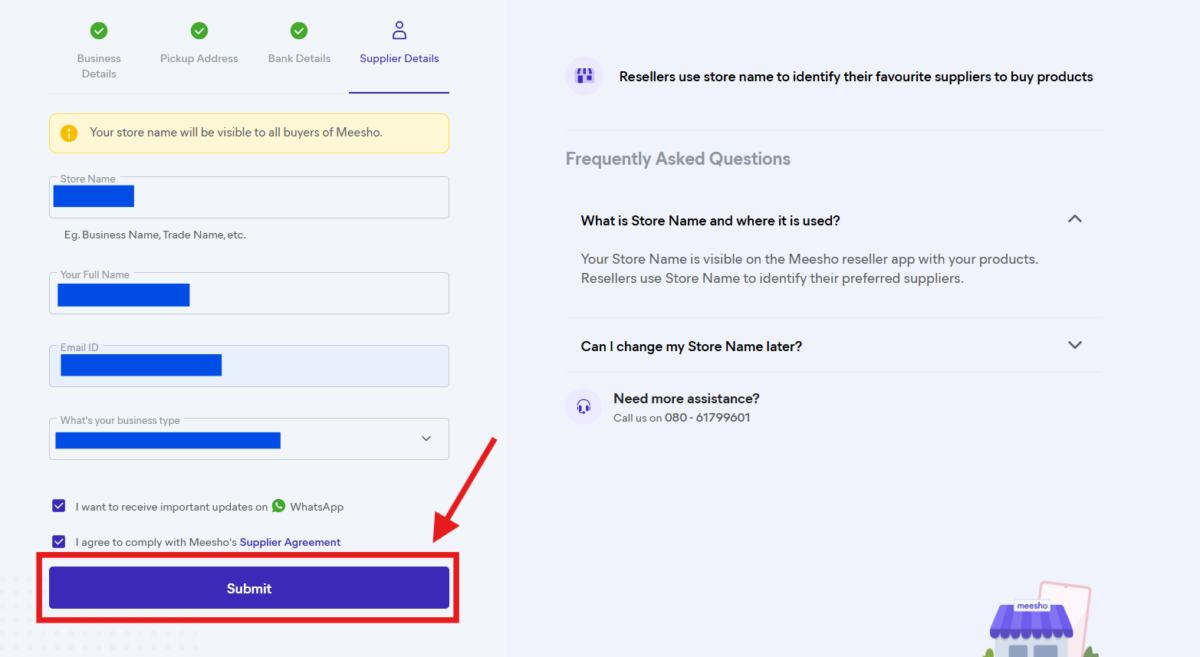
After completing all steps, here’s your Meesho Seller Dashboard!


Want a complete guide on how to sell and grow on Meesho? Let us know in the comments or write to us at ifaraz@ithinklogistics.com, and we’ll put together an actionable guide with free resources.
Choosing Your Store Name on Meesho
Your store name is visible to all buyers on Meesho, so pick it carefully.
Go with something professional and related to what you sell, like “Priya Cotton Collections” instead of “Shop12345.”
Keep it short, easy to remember, and skip the special characters. Take some time to decide on your store name, as changing it later may require Meesho support, so it’s better to get it right the first time.
Tip: Think of it like your brand name; buyers will see it on every product you list.
Meesho Enrollment ID: What It Is & How to Get One
Without GST registration, you can still sell on Meesho.
When you select “No” in the Business Details step during signup, Meesho asks you to enter your name (as per PAN), PAN card number, email address, and address. Once you submit these details and verify via OTP, Meesho automatically generates your Enrollment ID. You’ll receive it in your email, and on the next screen, it will auto-fill along with your name, PAN number, and registered address.
No need to visit the GST portal or apply for anything separately. Meesho generates enrollment IDs during the signup process.
Meesho Product Page: Complete Seller Guide
Once your seller account is set up, it’s time to focus on what actually gets you sales on your product page. This section covers everything from images and titles to product IDs, pricing, and how buyers discover your listings.
What Is a Meesho Product Page?
The Meesho product page is the main screen where customers see your product details, images, price, description, ratings, size, delivery info, and more. This is where customers decide whether to buy from you.
As a seller, every element you optimize on this page directly affects your sales. Better images, clearer titles, and the right pricing can make the difference between a scroll-past and a purchase.
How to Add Good Product Images on Meesho
Images are the first thing customers notice. The better your image, the more likely someone is to click and buy.
Follow these steps to upload great product images:
- Upload up to 4 images.
- Show the front, back, and close-up of the product.
- Use a plain background.
- Show variations if available (e.g., red/blue/green).
Bonus: Add one image showing size or usage (e.g., model wearing the kurti).
How to Write a Good Product Title on Meesho
This way to write a powerful Meesho product title:

- Keep it short and clear (around 5-8 words).
- Include product type + highlight.
- Example: “Stylish Cotton Kurti for Women”
- Avoid: “Wow, wow, buy now, amazing top.”
Your title should explain:
- What it is (e.g., kurti)
- Who it’s for (e.g., women)
- Any special quality (e.g., cotton, printed)
How to Write a Product Description on Meesho
A good product description answers customers’ questions.

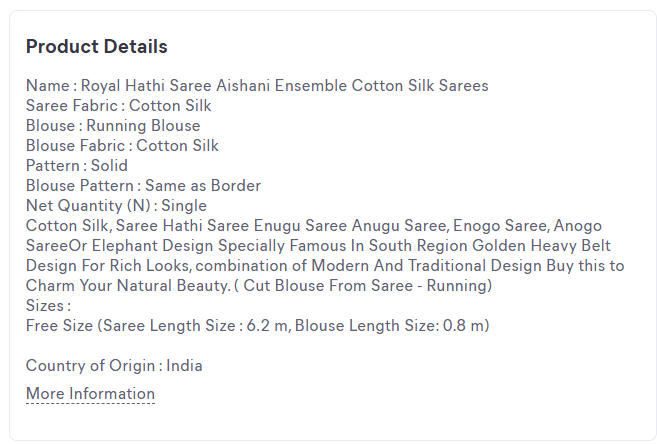
Follow these steps to write one:
- Mention material (e.g., cotton, silk)
- Mention fit (e.g., slim fit, loose)
- Add care tips (e.g., hand wash only)
- Keep it short and easy to understand
Example: “This soft cotton kurti is perfect for daily wear. Sleeveless, regular fit. Hand washing is recommended.”
How to Add Size, Price Options & Variations in One Listing
Don’t create a new product for every color or size. Meesho lets you add product variations to a single listing, which is exactly what you should do.
You can set different prices for each size. Example:
- M = ₹295
- L = ₹310
- XL = ₹320
You can also create variations for:
- Color (Red, Blue, Black)
- Size (S, M, L)
- Fabric (Cotton, Rayon)
This helps customers shop easily and keeps your store neat. Plus, keeping all variants under one listing means your reviews, ratings, and views stay together instead of being split across multiple listings.
Let buyers choose the size that fits and the price they prefer.
Understanding Pricing, Shipping & Free Delivery Tags
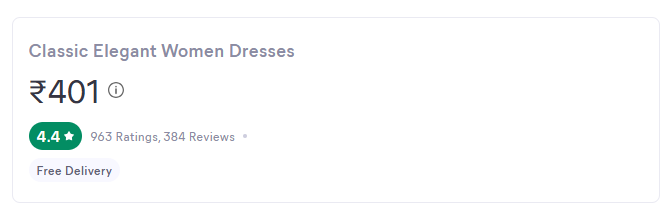
When setting your price, keep in mind that the total price shown on the product page usually includes shipping. Here’s what buyers see on your listing and why it matters:
- Total Price: Set this competitively. Check what similar products are listed for before deciding on yours.
- Free Delivery Tag: If no extra shipping is added.
- Ratings: More stars = higher trust. Products with 4+ stars appear higher in search results.
Pro Tip: Products with 4+ stars and free delivery sell the fastest on Meesho.
What are Product ID, Style Code & Variation ID in Meesho?
Every product on Meesho has a unique product ID (like s-489558378). If someone shares this ID, just type it into the search bar, and you’ll see that product directly.
Took at any product image on the bottom left side; product ID will be there

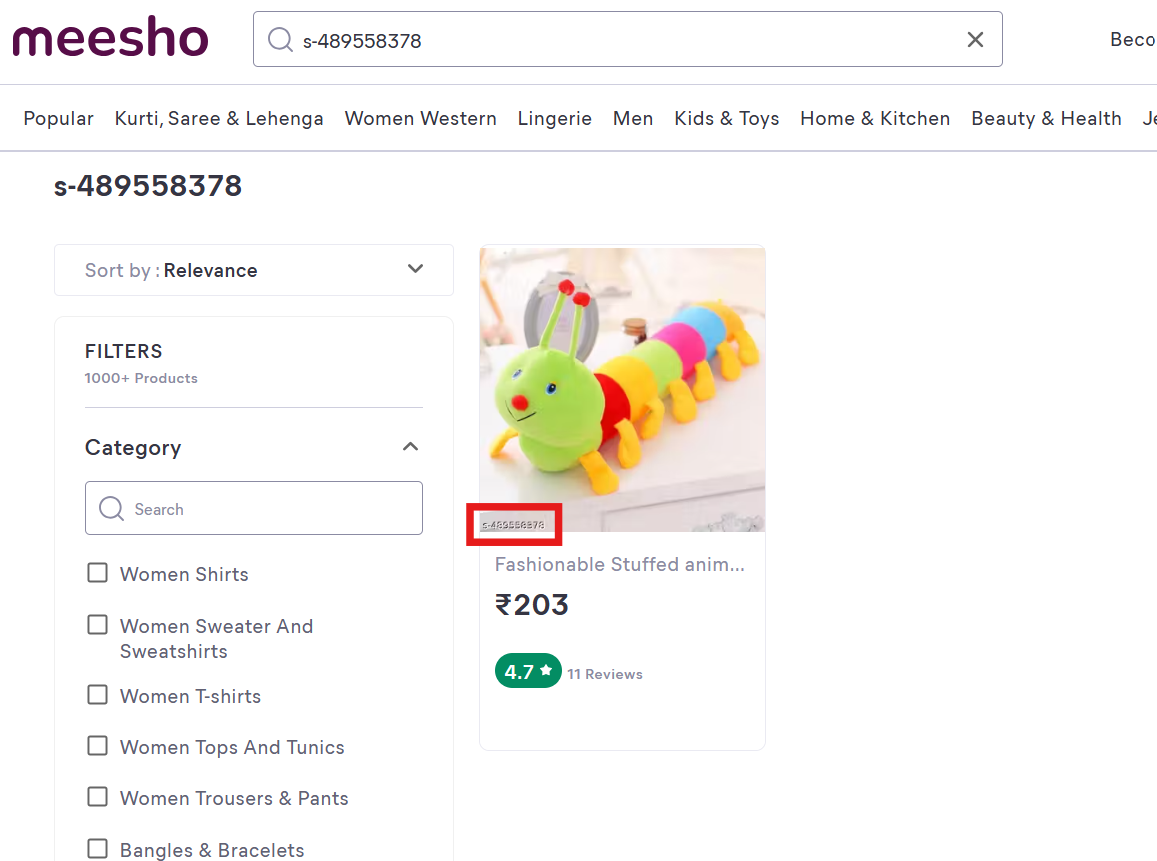
Product ID helps in:
- Reordering
- Responding to customer queries
- Tracking listings
But that’s not the only ID you’ll come across. Here’s a quick breakdown:
- Product ID: the unique number Meesho gives to your product. You’ll find it on your product page and in the supplier panel.
- Style Code: This is the same as the product ID in most cases. You’ll see it in your supplier panel dashboard when editing catalogs. It’s in “Product, Size and Inventory” that you can put the style code as you want.
- Variation Name: the label for each variant you create (like “Red – XL” or “Blue – M”). This is what buyers see when they select options.
- Variation ID: each specific variant (say, Red in size M) gets its own unique ID. You’ll need this when tracking inventory or responding to order-specific queries in the supplier panel.
| ID Type | What It Is | Where to Find It |
| Product ID | Unique number Meesho gives your product | Product page + Supplier Panel |
| Style Code | Same as Product ID in most cases | Supplier Panel dashboard |
| Variation Name | Label for each variant (like “Red – XL”) | What buyers see when selecting options |
| Variation ID | Unique ID for each specific variant | Supplier Panel, inventory tracking |
You can find all these IDs in your Meesho Supplier Panel under the product catalog section.
How Buyers Find & Buy Your Products on Meesho
Understanding how buyers discover your products helps you sell better.
When a buyer searches on Meesho, the app shows products based on keywords, ratings, price, and delivery speed. This is why using popular keywords in your product title matters, and it’s how your listing shows up in search results.
Make sure your first 2 images and title are strong; that’s all buyers see in search results before deciding to click.
Once a buyer lands on your product page, the Buy Now button lets them place an order instantly. And if someone visits your product but doesn’t order, Meesho may show it again later using abandonment cards, basically retargeting that buyer for you.
This increases your chances of getting a sale, even if not immediately. Your job? Make sure the first impression is strong: good images, a clear title, and a competitive price.
How to Login & Manage Your Meesho Seller Account
Once your account is created, log in, use your dashboard, and manage your day-to-day selling on Meesho.
Meesho Seller Login: Web, App & Supplier Panel
To log in to your Meesho seller account:
- Go to the supplier. meesho.com.
- Enter your mobile number or email address and password, or request an OTP.
- Press Login and you’ll land in your Meesho seller login account or Meesho supplier login panel.
You can also log in using the Meesho Supplier app, download it from the Play Store, use the same credentials, and manage everything from your phone.
Forgot your password? Click Forgot Password on the login page, verify with OTP, and set a new one.
What You Can Do from the Meesho Seller Dashboard
With your Meesho dashboard, you can:
- Upload product catalogs: add products one at a time or in bulk using CSV for faster listing.
- Manage orders and shipments: view new orders, track dispatch status, and handle returns from one place.
- Track payments: Meesho releases your payment 7 days after delivery confirmation. You can check payment status and history anytime.
- Earn 100% profit: Meesho charges 0% commission, so whatever margin you set is yours to keep.
Managing Orders, Payments & Shipments
Meesho supports shipping across 19,000+ pincodes pan-India, so your products can reach buyers almost anywhere.
The order flow works: once a buyer places an order, it shows up in your dashboard. You pack and dispatch it, Meesho’s logistics partner picks it up, and the buyer receives it.
Meesho’s NDD program rewards fast dispatchers with better listing visibility. Meesho typically delivers within 5-7 business days, depending on the pincode.
Tip: The quicker you ship, the higher Meesho ranks your product. Enroll in the NDD Program through the panel support and ship products quickly to improve ranking and support.ort.
How to Delete or Deactivate Your Meesho Account
Want to delete your Meesho account, or just need a break? Here’s how to do both — and what to expect.
How to Delete/ Deactivate Meesho Seller Account
To delete your Meesho seller account:
- Log in to your account.
- Go to Support > Accounts > Other issues, then click Raise a Ticket.ket.
- Ask support to delete your seller account.
Support will raise your ticket and start processing account deletion. Once deleted, you’ll lose access to your orders, address book, payment history, seller ratings, and all your product listings. This action is permanent, and you won’t be able to recover your account or data after confirmation. Deletion usually takes effect within 24-48 hours.
Same Steps applied for account deactivation.
Make sure to withdraw any pending payments before you delete.
Tips to Improve Your Meesho Sales & Shipping
Setting up your Meesho store is the first step. Here’s how to actually grow your sales and handle logistics as you scale.
How to Rank Your Products Higher on Meesho
Want more visibility? Here are a few things that help your products rank better on Meesho:
- Use keyword-rich product titles that include what the product is, who it’s for, and the material.
- Upload clear, high-quality images with a plain background.
- Dispatch orders fast as Meesho pushes quick sellers higher in search.
- Collect good ratings by delivering exactly what’s shown in the listing.
- Price competitively by checking what similar products are listed for.
Tip: Most of these come down to getting your product page right. If you’ve followed the guide above, you’re already halfway there.
Why Shipping Speed Matters for Meesho Sellers
Meesho’s Next Day Dispatch (NDD) program prioritizes sellers who ship within 24 hours. That means better placement in search results and more orders coming your way.
On the flip side, late dispatches hurt your seller rating, and once that drops, so does your visibility.
For sellers handling their own logistics outside Meesho’s system, a courier aggregator like iThink Logistics gives you access to 25+ courier partners with auto-allocation, so you can select the fastest and cheapest option for every pincode.
Handling Returns & Reducing RTOs on Meesho
Returns and RTOs (Return to Origin) can eat into your profits fast. Here’s how to keep them low:
- Confirm orders via call or WhatsApp before shipping, especially for COD.
- Use accurate product descriptions and real images so buyers know exactly what they’re getting.
- Verify high-value COD orders before dispatch to avoid fake orders.
- Pack products properly to avoid damage complaints.
Tools like iThink Logistics offer automated NDR management and COD reconciliation to help sellers cut RTO rates without extra manual work.
Conclusion
Selling on Meesho is not just about uploading a product. It’s about showing it smartly, using the platform’s tools to your benefit, and making it easy for buyers to say “yes.”
This guide covered everything from setting up your Meesho seller account to optimizing your product page, managing orders, and handling deletions. If you follow these steps, you’re already ahead of most sellers on the platform.
Ready to start? Head to the supplier. meesho.com and create your account, or if you’re already selling outside Meesho and want faster shipping with 25+ courier partners, check out iThink Logistics.
FAQs
Got questions? Here are the most common ones sellers ask about Meesho.
Q.1: Do I need GST to sell on Meesho?
No, GST registration is not mandatory. If you don’t have a GSTIN, you can sign up using your GST Enrollment ID or UIN instead. You get the Enrollment ID via the No GST option during Signup, then follow the steps to fill in the details with Pan, and Meesho will email you the Enrollment ID.
Q.2: How long does Meesho seller approval take?
Once you submit all your documents and complete verification, Meesho usually approves your seller account within 1-2 business days. Make sure your GSTIN (or Enrollment ID), bank details, and pickup address are correct, as incomplete info can delay the process.
Q.3: Can I have multiple Meesho seller accounts?
Meesho typically allows one seller account per set of documents (GSTIN/Enrollment ID + bank account). Creating multiple accounts with the same details can lead to suspension. If you have separate businesses with different GST registrations, those can have their own accounts.
Q.4: What is SKU ID in Meesho?
SKU stands for Stock Keeping Unit; it’s a unique code you assign to each product variant for your own inventory tracking. It’s different from the Product ID Meesho automatically assigns. Think of it this way: Product ID is Meesho’s way of identifying your product, SKU ID is your way. (See: Product IDs, Style Codes & Variation IDs explained)
Q.5: What to write in the inventory in Meesho?
Inventory is simply your stock count, like how many units you have available for each size or color variant. For example, if you have 50 pieces of size M and 30 pieces of size L, enter those numbers in the inventory field in your supplier panel. Keep this updated to avoid overselling.
Q.6: Can I recover a deleted Meesho account?
If you permanently delete your account, recovery is usually not possible, and yourdata, listings, and ratings are gone. But if you only deactivated your account, you can reactivate it at any time by logging back in. That’s why we recommend deactivating first if you’re unsure. (See: Delete or Deactivate your account)



3 replies on “Meesho Seller Account Guide: Create, Manage, Delete & Use Product Pages 2026”
This guide is a great resource for new sellers looking to get started on Meesho. I especially appreciated the clear breakdown of the account setup requirements and the step-by-step process, which makes it easy to follow even for someone new to e-commerce selling. It’s helpful to know that there’s no commission and minimal investment needed to begin, which lowers the barrier for aspiring entrepreneurs.
Thanks for sharing your thoughts. I truly appreciate your efforts and I am waiting
for your next post thank you once again.
excellent submit, very informative. I’m wondering why
the opposite specialists of this sector do not notice this.
You should continue your writing. I am sure, you have a huge readers’
base already!